Become a partner and get paid for sending businesses our way.
Blue Penguin partners do not need to build sites, write code, or manage clients. You help start the conversation, we handle the demo and delivery, and you earn a payout when the website sells.
Partner Snapshot
Lightweight, practical, repeatable.

What you do
Spot businesses that need a better website, start the conversation, and help move the opportunity forward.
What we do
Build the demo, handle revisions, create the payment link, and deliver the finished site after the client pays.
Best for people who already know local business owners.
If you can make intros and explain the offer clearly, Blue Penguin can handle the work on the back end.
How It Works
The process stays simple from first intro to payout.
Find a business that needs a better site
Look for local businesses with weak websites, no website, or a business owner who still sells through social media and text messages.
Send them to Blue Penguin
Start the conversation, make the intro, and show them the simple pricing. We keep it easy: one setup payment and $30/year after that.
We build the demo
Blue Penguin handles the design work, demo build, revisions, and payment setup so the business can see the site before committing.
You get paid when the sale closes
Once the client pays, your payout goes through your partner Stripe account based on the setup-fee tier for that sale.
Payout Tiers
You earn based on the setup fee for the sale.
When a client buys a website, your payout is based on the setup-fee tier for that sale. Blue Penguin handles the build, the payment flow, and the delivery.
Good Fit
This works best if you enjoy opening doors, not building websites.
You already know local business owners and can make warm intros.
You are comfortable spotting bad websites or places that need one and opening the conversation.
You want a simple side-income offer instead of doing client work yourself.
You would rather sell the opportunity and let Blue Penguin handle the build.
Partner Training
Exactly how to sell websites as a Blue Penguin partner.
This is the full partner workflow from signing up to sending the payment link. Follow the steps in order, use the Stripe details exactly as shown, and only save a note when a prospect is interested in seeing a demo.
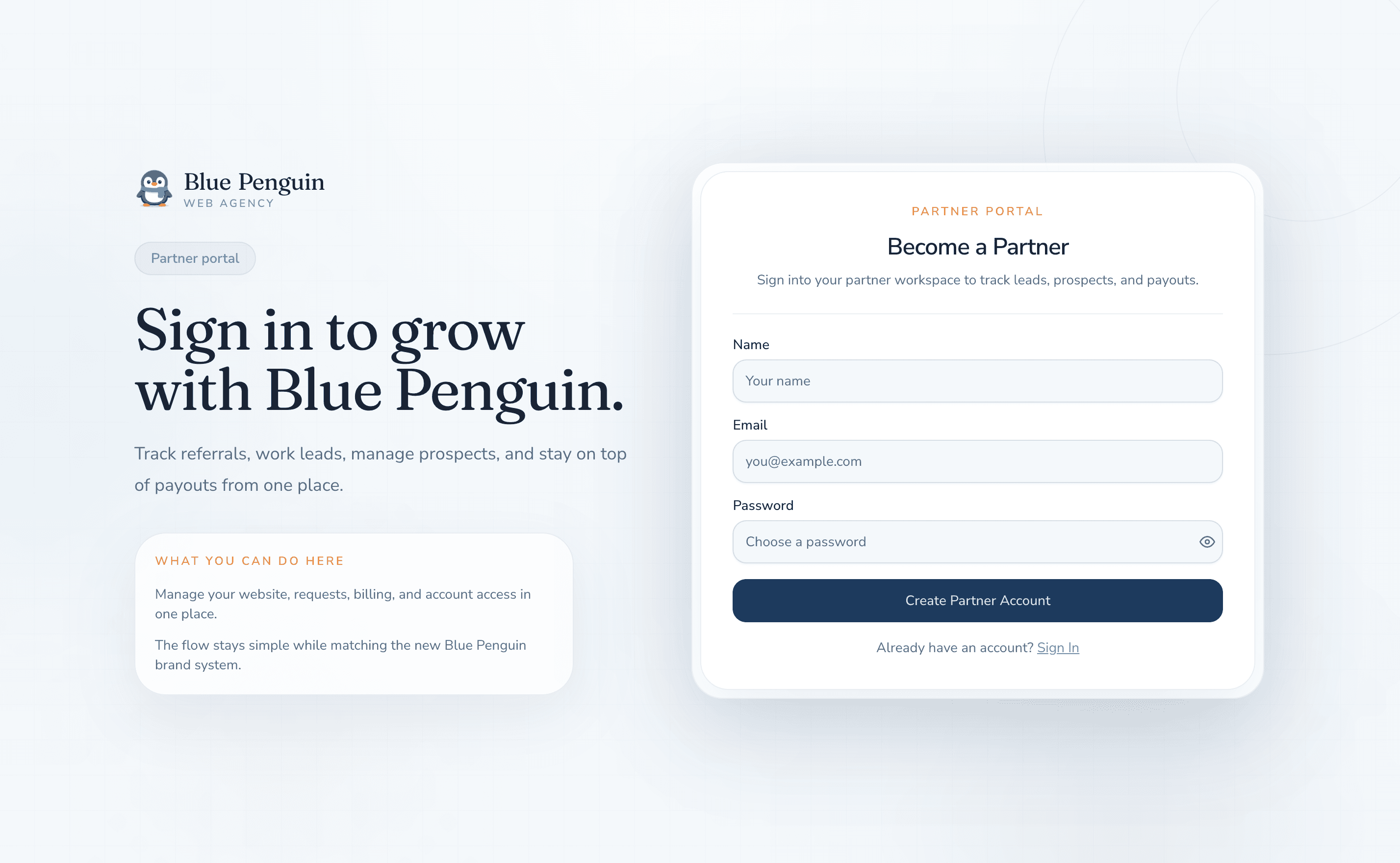
Create your Blue Penguin partner account
What To Do
Go ahead and sign up through the Blue Penguin website so you can access the partner dashboard.
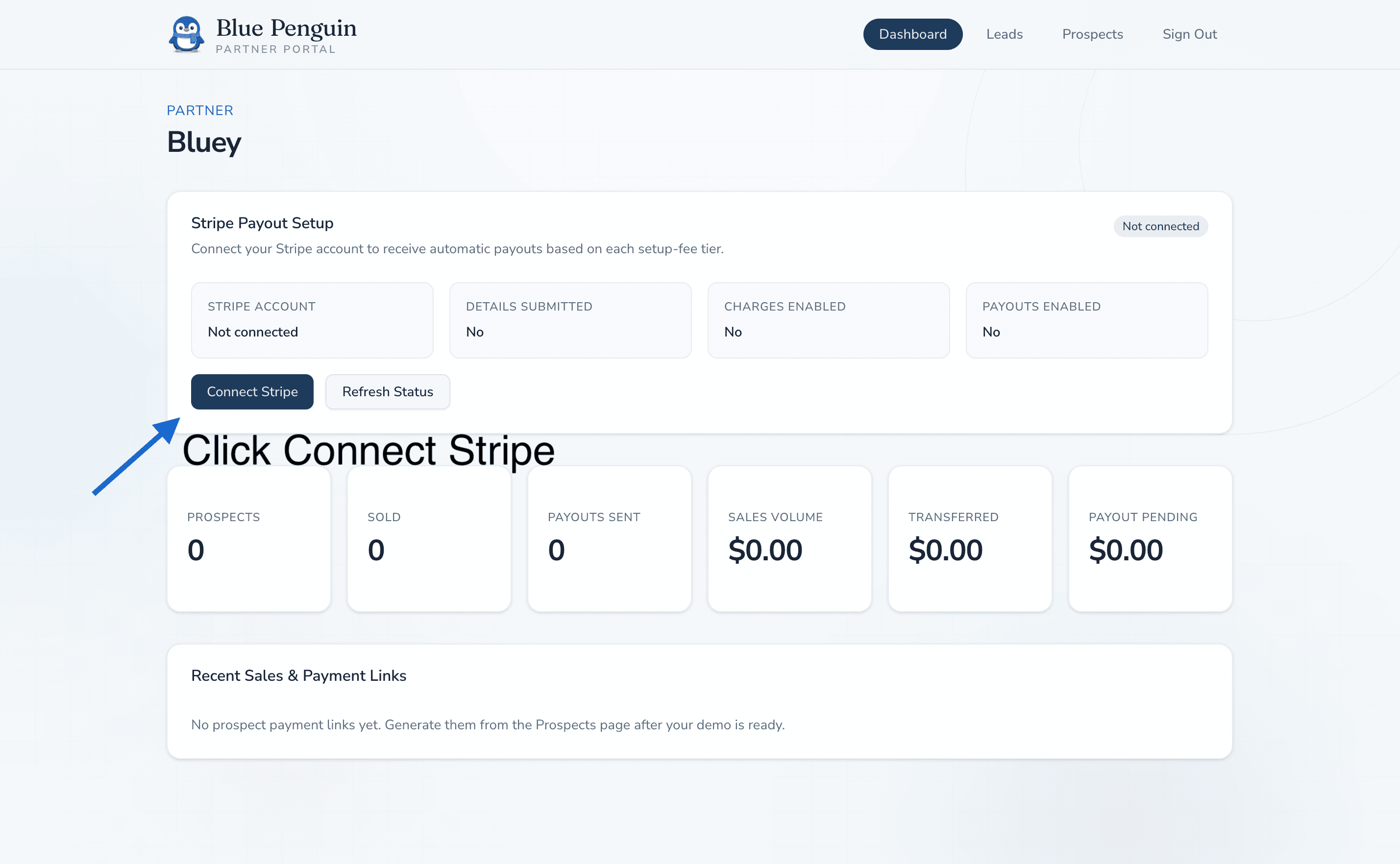
Connect Stripe from the dashboard
What To Do
Once you are signed in, click Connect Stripe from the Blue Penguin dashboard.
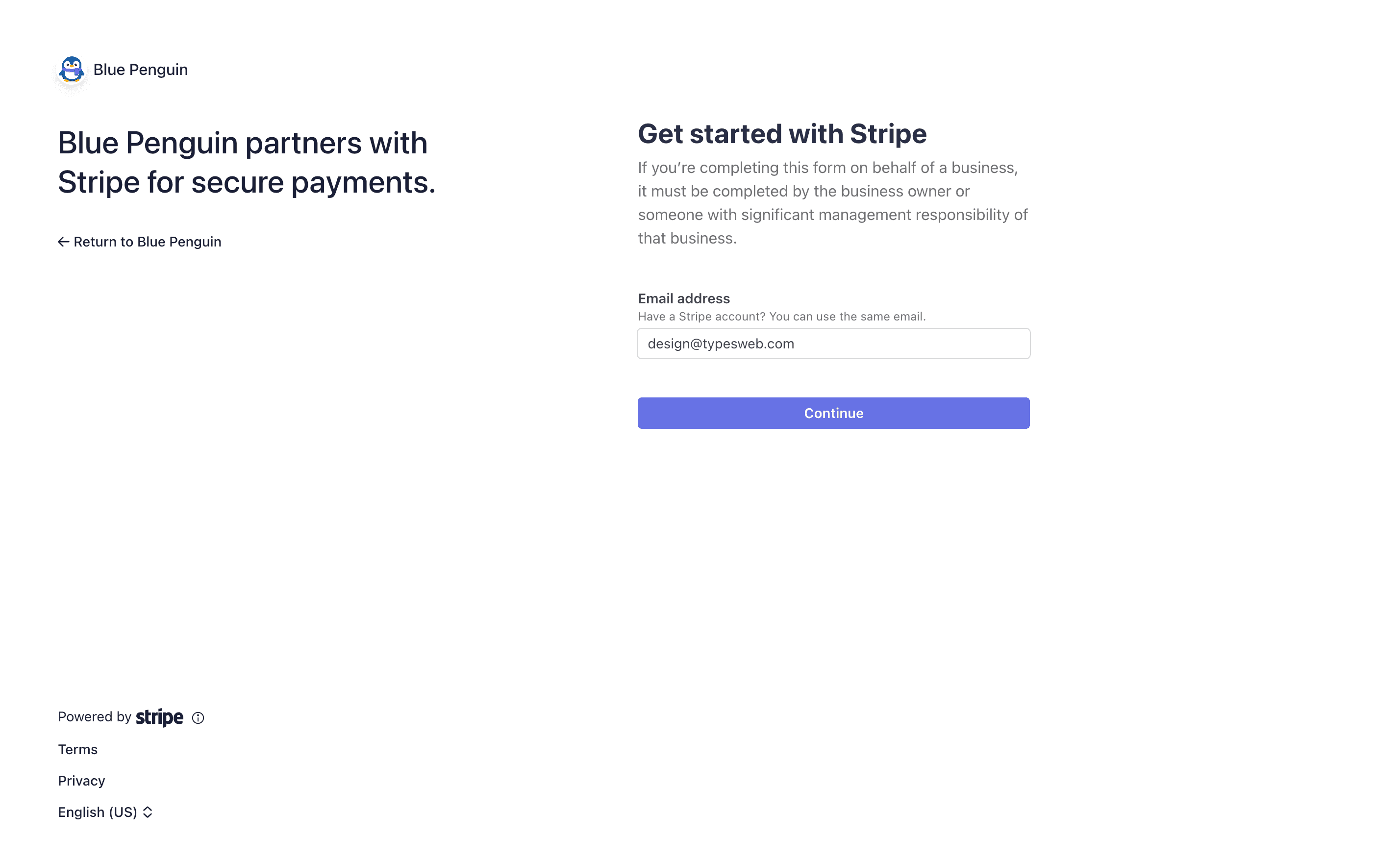
Start Stripe onboarding with your own email
What To Do
Start the Stripe onboarding flow and use your own email address during setup.
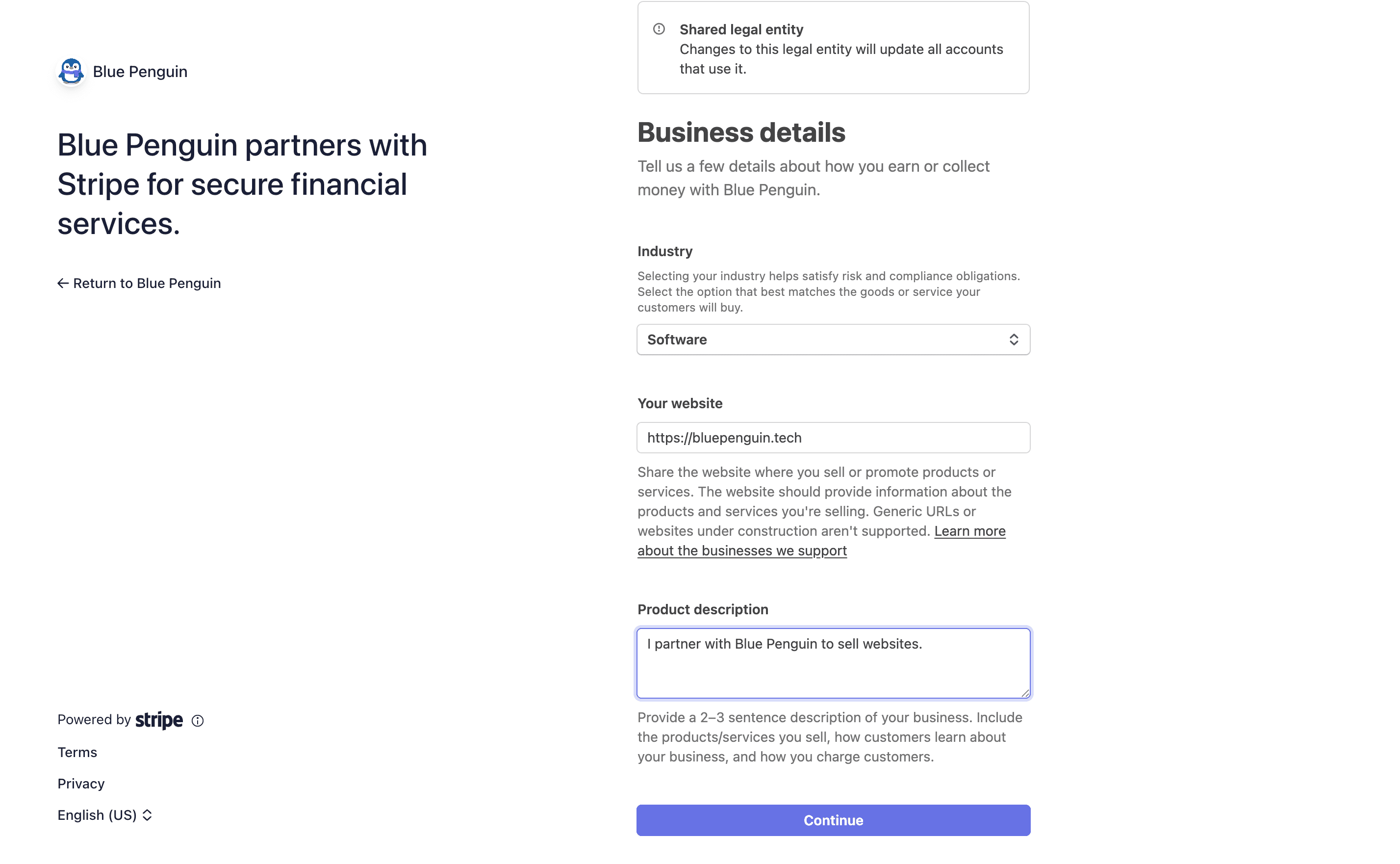
Use these business details inside Stripe
What To Do
For the business details section in Stripe onboarding, use the exact details below.
What To Select Or Type
- Industry: software
- Website: bluepenguin.tech
- Product description: I partnered with Blue Penguin to sell websites
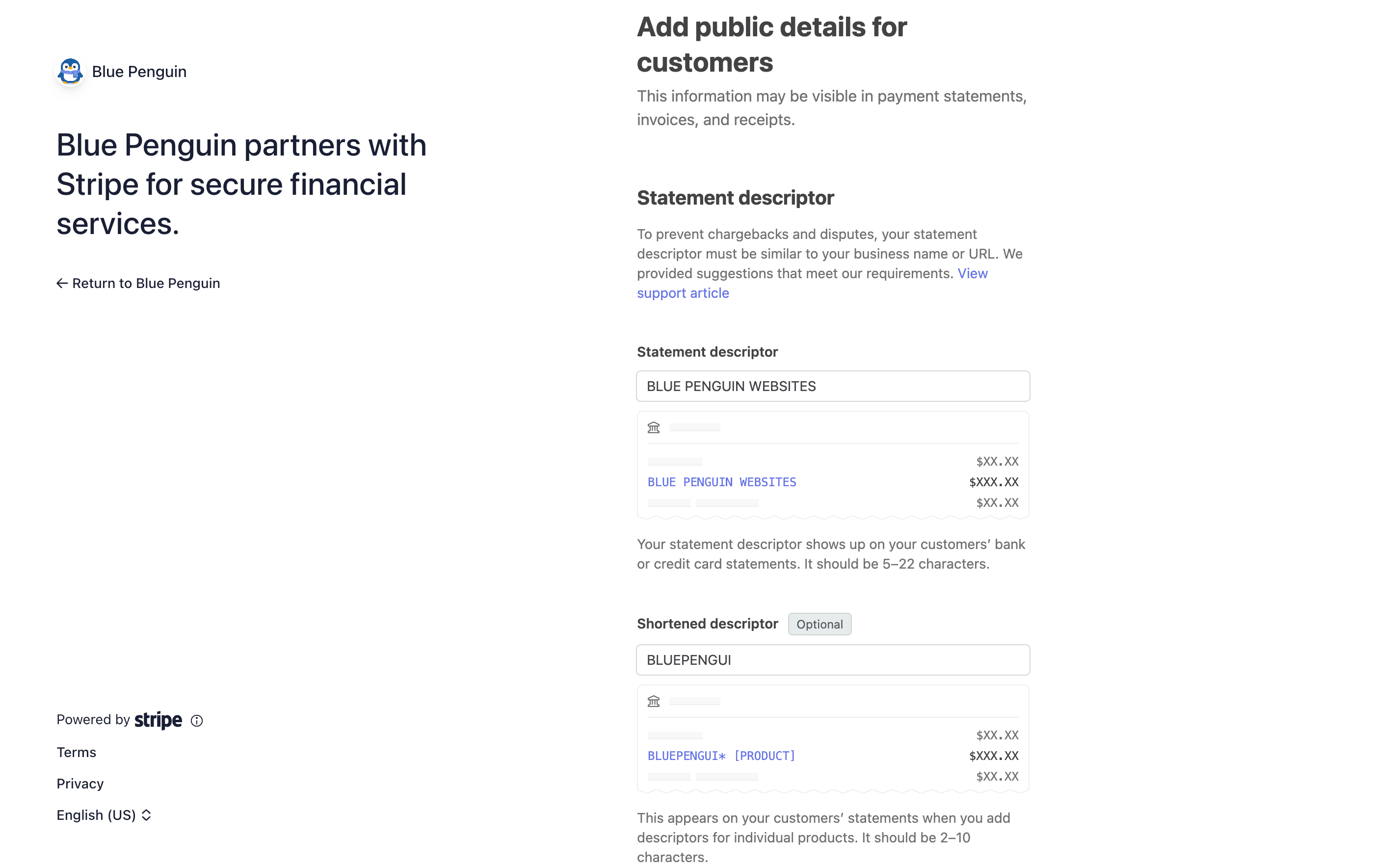
Set the Stripe descriptors correctly
What To Do
When Stripe asks for descriptors, use the exact values below.
What To Select Or Type
- Statement descriptor: "Blue Penguin Websites"
- Shortened descriptor: "BLUEPENGUI"
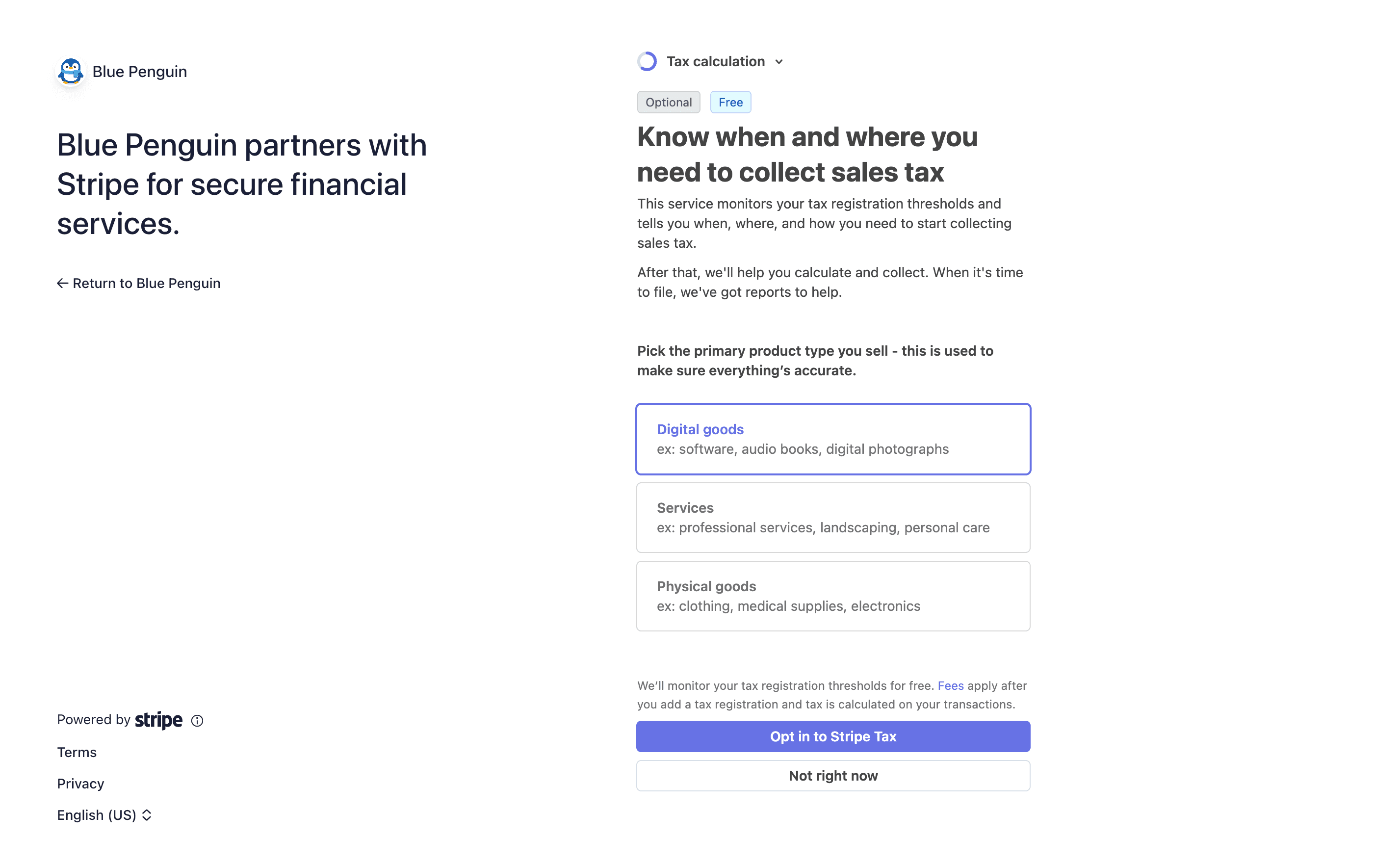
Skip Stripe Tax
What To Do
When you reach the tax calculation section, choose not right now instead of opting into Stripe Tax. Stripe Tax is not needed for this partner setup.
Important
Select: not right now
Go to Leads after onboarding
What To Do
Once Stripe onboarding is finished, return to the dashboard and click Leads in the navigation bar.
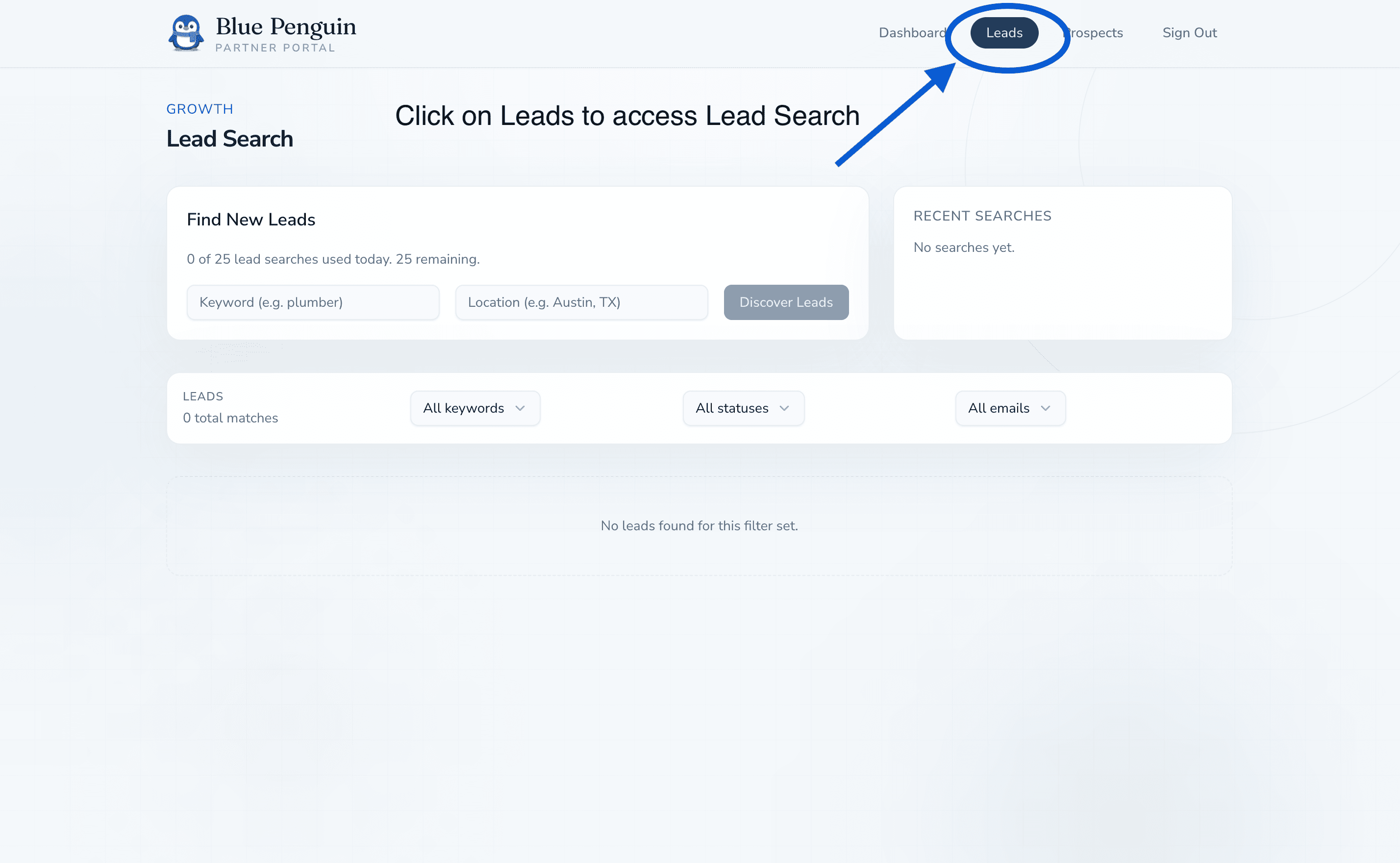
Search for leads by keyword and location
What To Do
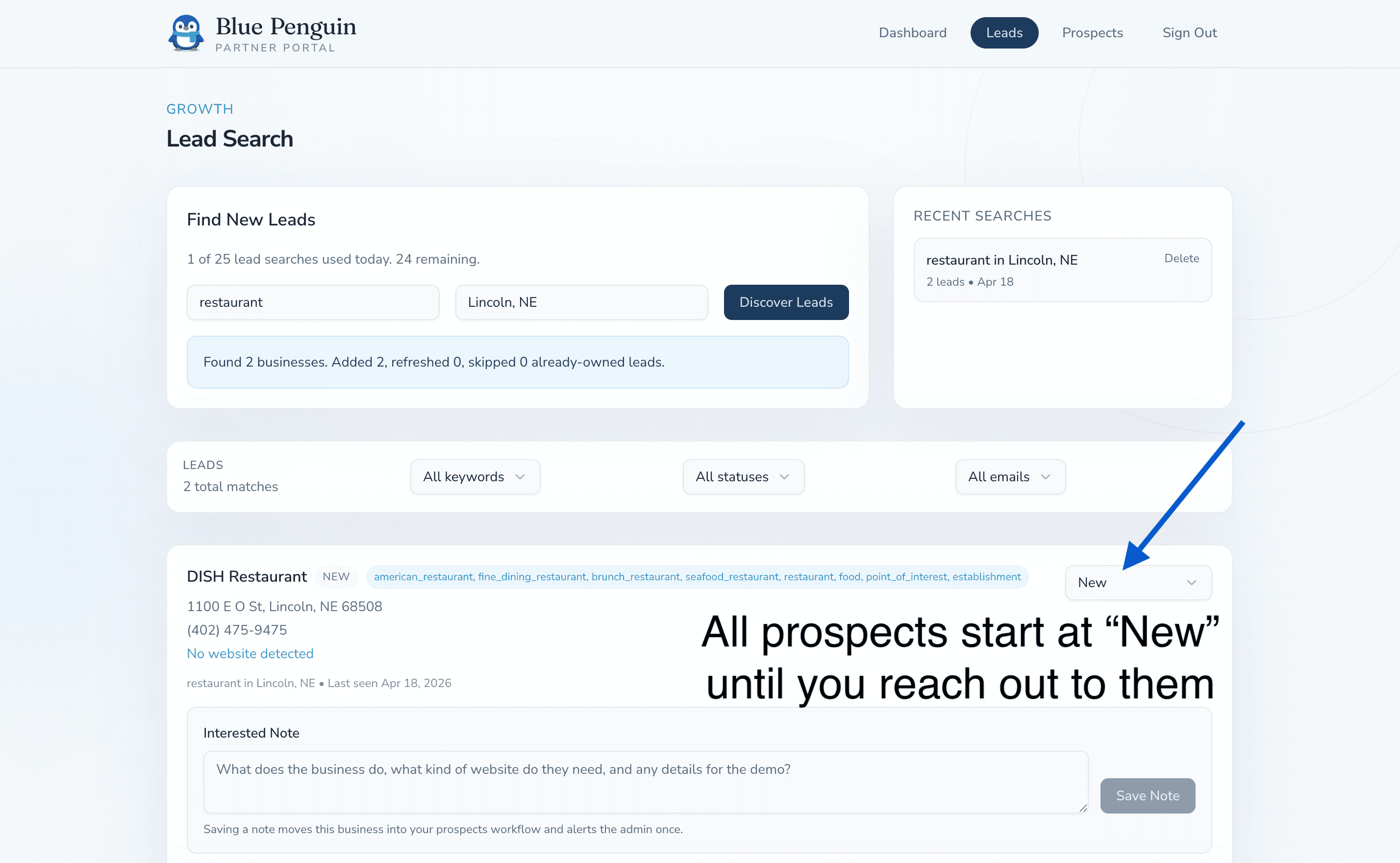
Enter a keyword and a location, then hit Discover Leads. Every prospect starts as new until you reach out to them.
What To Select Or Type
- Keyword: the type of business you want to target
- Location: the city or area you want to search in
Dismiss uninterested leads without saving a note
What To Do
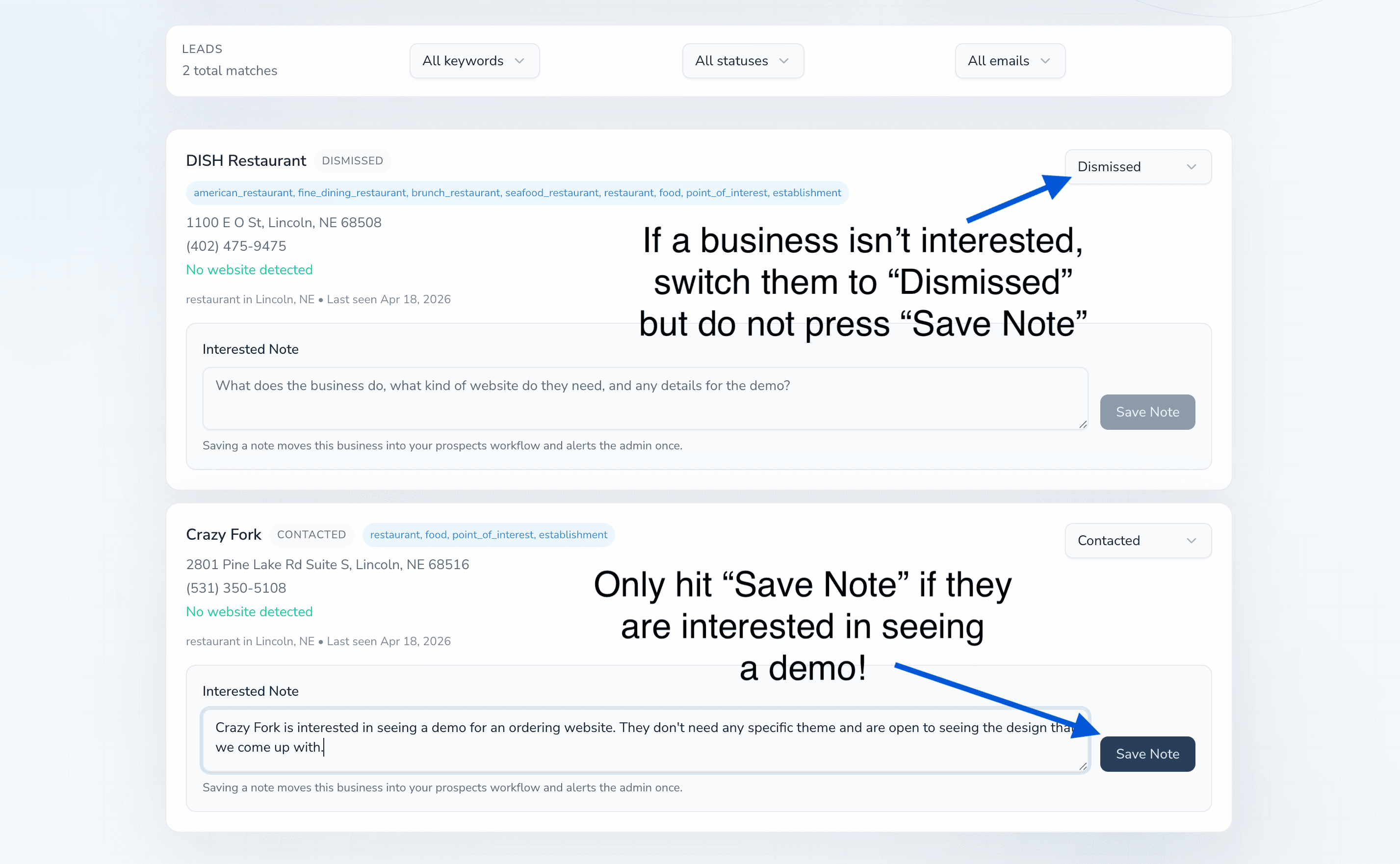
If a lead is not interested, mark it dismissed. Do not press Save Note unless they want to see a demo.
Caution
Save Note starts the demo-building process right away, so only use it for prospects who are interested in seeing a design.
Wait for the demo to appear in Prospects
What To Do
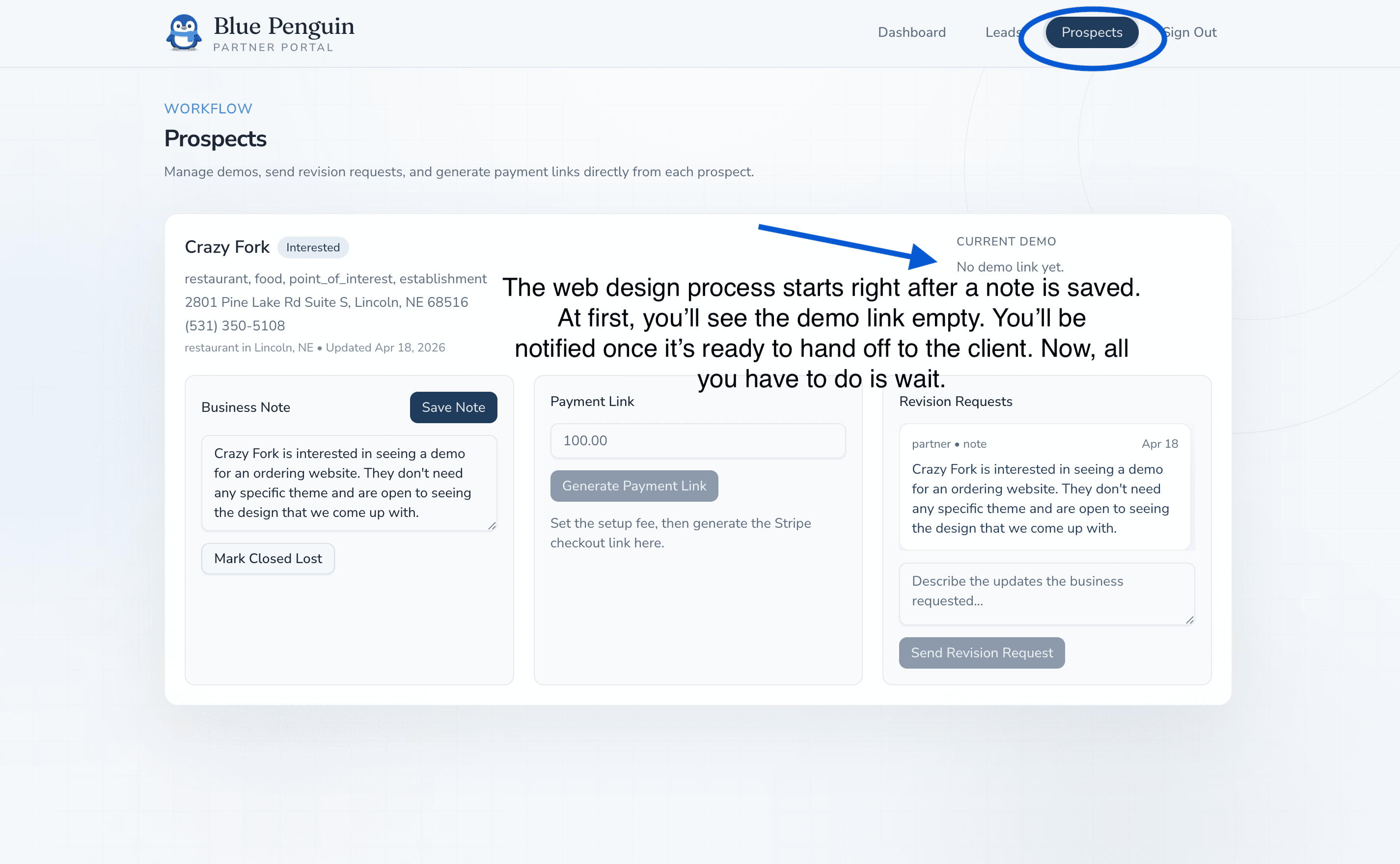
After a note is saved, check the Prospects tab. The web design process starts right away, but it takes some time for the demo to be created, so the demo link will be empty for a while.
Important
If there is no demo link yet, just wait until it is available.
Send the demo as soon as it is ready
What To Do
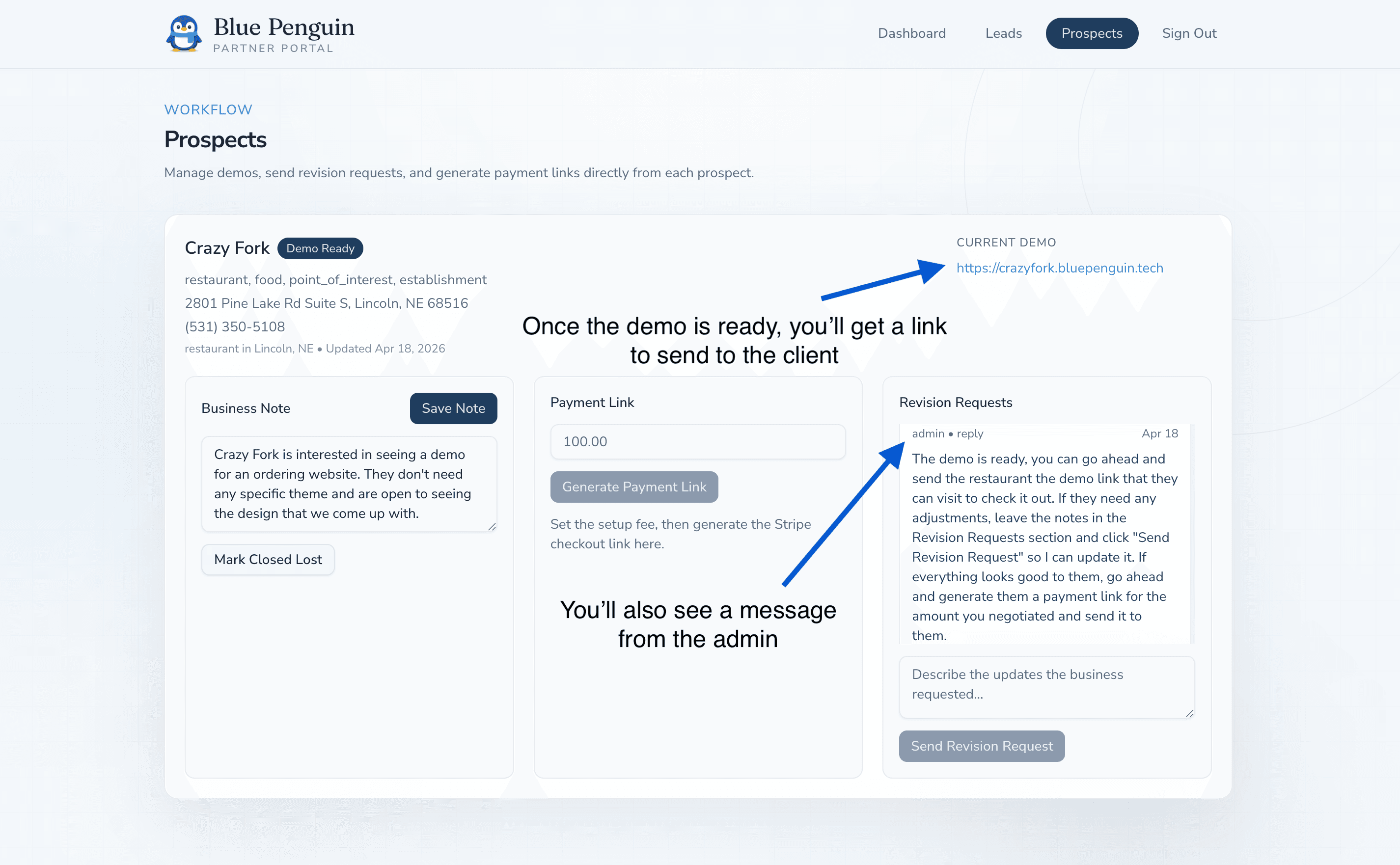
You will get notified when the demo link is ready, and you will also receive a message from the admin. As soon as it appears, you can send that demo link to the client.
Submit revision requests for client changes
What To Do
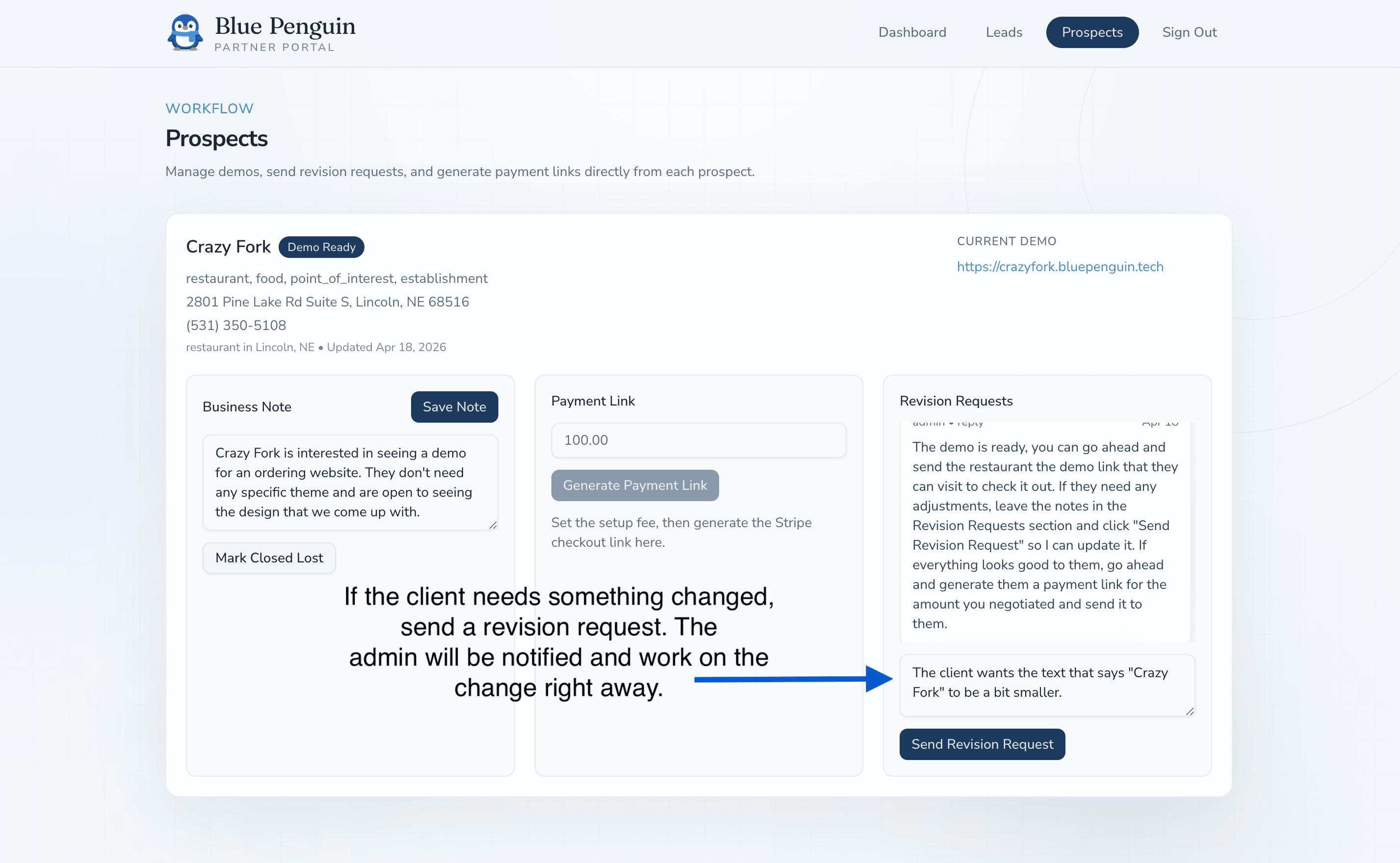
If the client wants something changed, send a revision request from the prospect thread. The admin will be notified and will work on the change right away.
Generate the payment link once the design is approved
What To Do
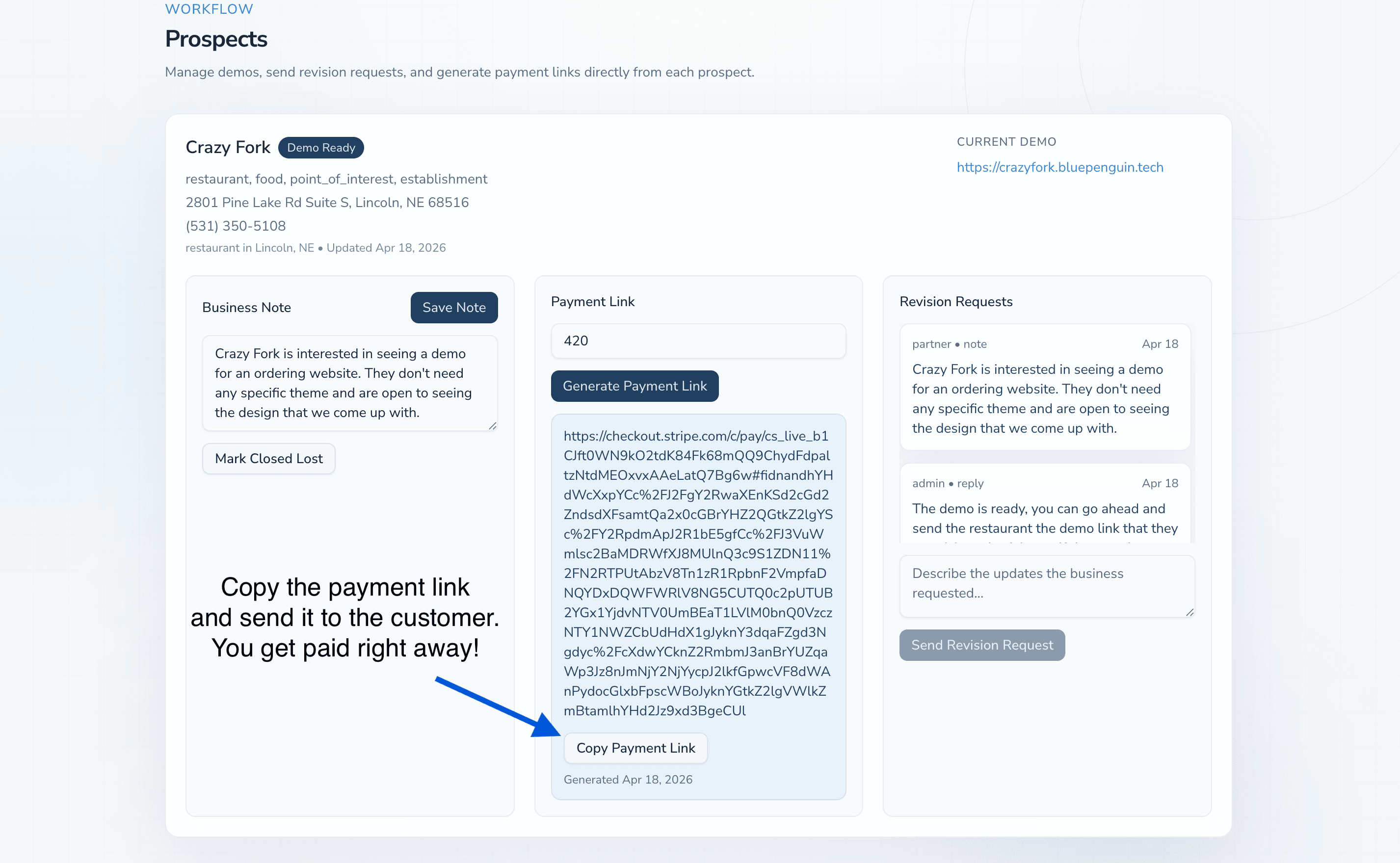
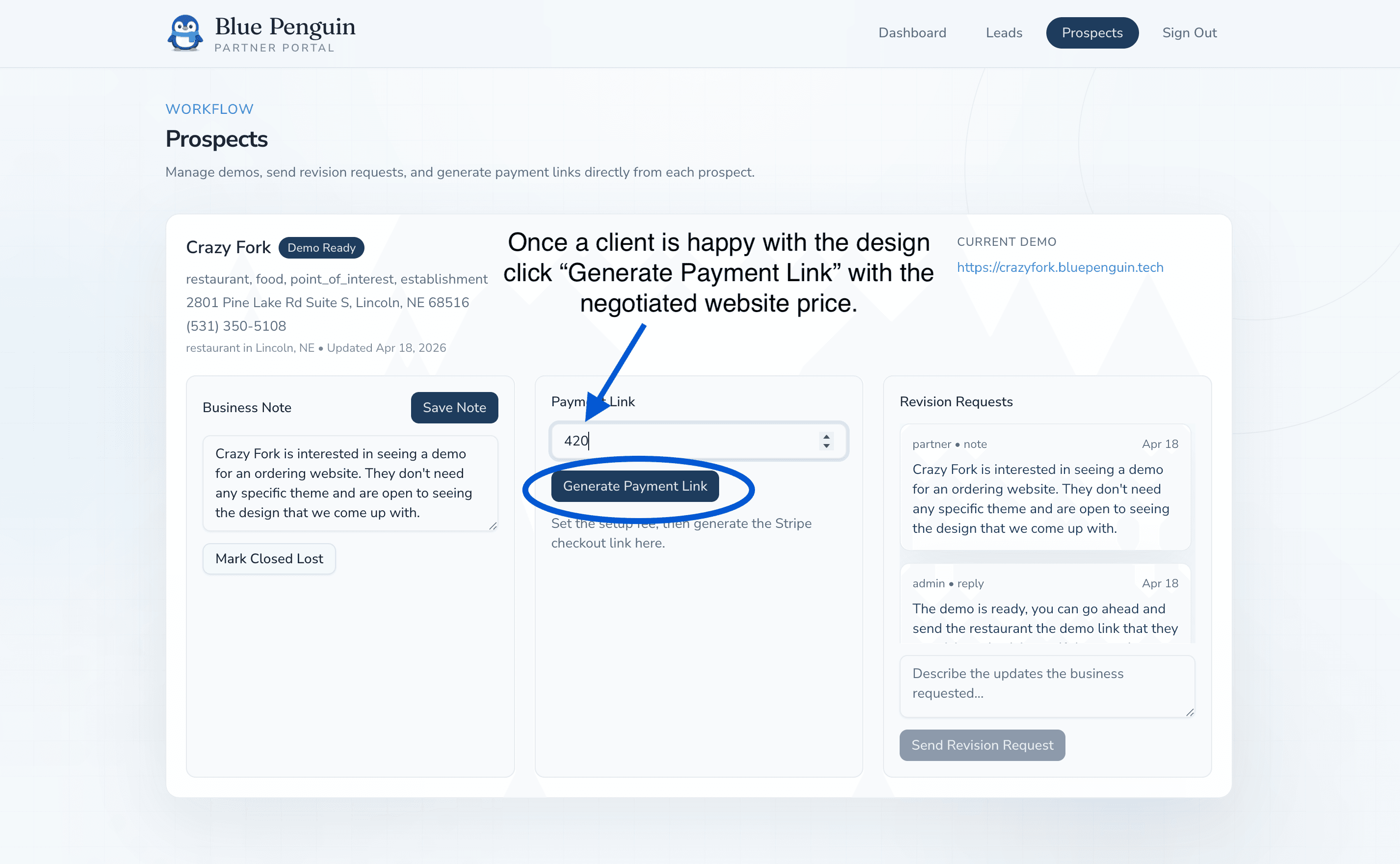
Once the client is happy with the design, generate a payment link using the negotiated website price.
Send the payment link and get paid after checkout
What To Do
Copy the payment link and send it to the customer right away. You get paid right after the customer pays.